
Why Active@ Boot Disk Is Our Customers' Favorite Tool
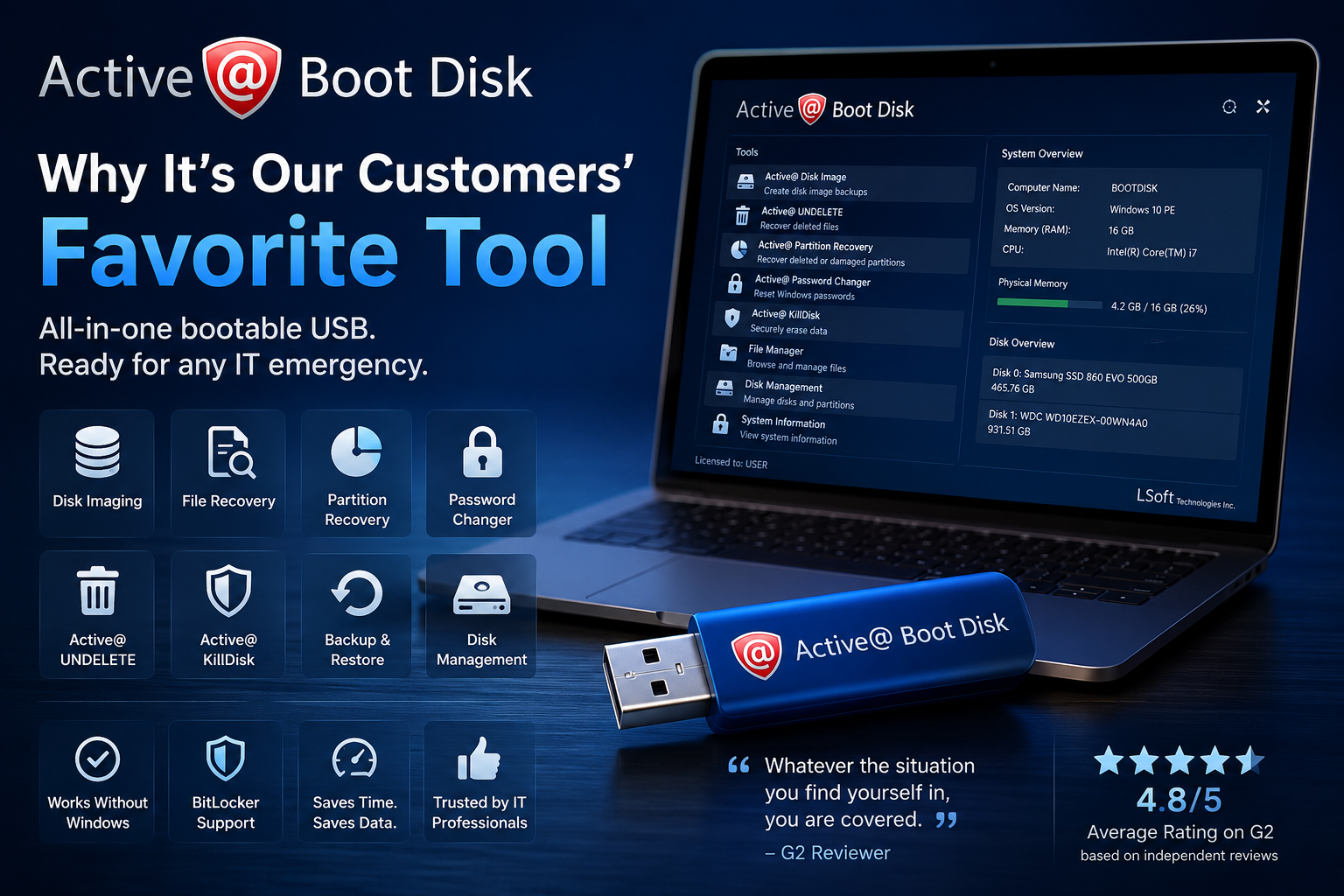
When a computer won't boot, every minute matters.
Whether you're recovering critical business data, repairing a damaged operating system, resetting forgotten passwords, or securely erasing drives before disposal, you need reliable tools that work independently of Windows.
That's exactly why Active@ Boot Disk has become one of the highest-rated products in the Active@ software family.
Instead of relying on marketing claims, let's look at what independent users consistently praise—and what makes Active@ Boot Disk their go-to recovery solution.
One Bootable USB. Countless Possibilities.
One of the strongest themes across customer reviews is convenience.
Rather than carrying multiple bootable utilities or downloading separate recovery applications, IT professionals appreciate having everything available from a single bootable USB.
Users frequently mention that Active@ Boot Disk combines essential utilities such as:
- Disk Imaging
- File Recovery
- Partition Recovery
- Active@ UNDELETE
- Active@ KillDisk
- Password Changer
- Backup and restore tools
- Disk management utilities
Having these tools in one place means less time searching for software and more time solving problems.
For busy IT departments and service technicians, that's a significant advantage.
A Familiar Environment When Every Minute Counts
Several reviewers highlighted something that often goes unnoticed.
Active@ Boot Disk provides a familiar Windows-like interface that feels comfortable from the moment it starts.
During emergency recovery situations, technicians don't want to learn a new interface—they want to focus on fixing the problem.
Users also praised support for modern storage technologies, including BitLocker-encrypted drives, making recovery possible even in more complex enterprise environments.
Built for Real IT Emergencies
Reading through independent reviews reveals a common pattern:
Customers aren't impressed by feature lists alone.
They're impressed because Active@ Boot Disk solves real problems.
Reviewers describe using the software to:
- Recover computers that no longer boot
- Restore lost files
- Repair damaged boot records
- Create backup images before hardware replacement
- Reset forgotten Windows passwords
- Securely erase drives before recycling or disposal
- Clone disks during migration projects
These are everyday challenges faced by system administrators, repair shops, managed service providers, and enterprise IT teams.
More Than Just Recovery
Many customers initially discover Active@ Boot Disk because they need one specific feature.
Later they realize it has become their complete maintenance toolkit.
Instead of carrying several USB drives filled with specialized utilities, technicians can rely on a single boot environment that covers:
- Backup
- Recovery
- Diagnostics
- Password management
- Disk imaging
- Secure data sanitization
This "Swiss Army knife" approach is one of the reasons customers continue recommending the product.
Honest Feedback Helps Us Improve
Independent reviews also include valuable suggestions.
Among the most common requests are:
- More frequent Boot Disk updates
- Additional flexibility during partition cloning, including the ability to skip bad sectors
- Continued modernization of the user interface
- Even tighter integration between recovery utilities
Feedback like this plays an important role in shaping future releases.
Many improvements across the Active@ product family have been inspired directly by conversations with IT professionals who use our software every day.
Why Professionals Keep Coming Back
Across independent reviews, one conclusion becomes clear.
Customers value Active@ Boot Disk because it saves time when time matters most.
They appreciate having a complete recovery environment that works outside the operating system and provides trusted tools for backup, recovery, diagnostics, password management, imaging, and secure erasure—all from a single bootable device.
When systems fail, dependable tools make the difference.
That's why Active@ Boot Disk continues to earn the trust of technicians, system administrators, forensic specialists, and IT professionals around the world.
What Customers Appreciate Most
Independent reviewers consistently highlight:
- Complete all-in-one recovery environment
- Easy bootable USB creation
- Familiar Windows-like interface
- Integrated backup and recovery tools
- BitLocker support
- Reliable disk imaging
- Password recovery utilities
- Secure data erasure with Active@ KillDisk
- Practical tools for real-world IT emergencies
Technology evolves quickly.
Reliable recovery tools never go out of style.
Ready for Your Next IT Emergency?
Whether you're recovering a failed workstation, migrating systems, troubleshooting startup issues, or securely wiping retired hardware, Active@ Boot Disk gives you the tools you need—all from one bootable USB.
Download the latest version and discover why so many IT professionals keep it within arm's reach.
If these aren't removed properly, they may remain accessible to the next owner—or even recoverable using specialized tools.
Fortunately, Apple provides excellent built-in security features, and with a few additional precautions, you can ensure your personal data stays private.
This guide walks through the safest way to prepare a Mac for resale or donation.
Step 1 – Back Up Your Mac
Before making any changes, create a complete backup.
Once the erase process begins, recovering forgotten files can be difficult—or impossible.
You can back up your Mac using:
- Time Machine
- An external drive
- Cloud storage
- A full disk image
Be sure to verify that your backup is complete before proceeding.
Step 2 – Sign Out of Apple Services
Your Apple ID connects many services to your Mac.
Before selling the computer, sign out of:
- iCloud
- iMessage
- FaceTime
- Apple Music
- Apple TV
- Apple Books
- Find My Mac
Signing out removes personal information and disconnects the device from your Apple account.
Step 3 – Disable Activation Lock
If Find My Mac is enabled, your Mac may be protected by Activation Lock.
Activation Lock prevents anyone else from activating the computer without your Apple ID credentials.
While this is an excellent anti-theft feature, forgetting to remove it before selling your Mac can prevent the buyer from using the device.
Signing out of iCloud or disabling Find My automatically removes Activation Lock.
Step 4 – Deauthorize Third-Party Applications
Many professional applications use activation limits.
Before selling your Mac, deactivate software such as:
- Adobe Creative Cloud
- Microsoft Office
- Logic Pro (if applicable)
- Final Cut Pro licenses
- VPN software
- Professional development tools
This ensures you can activate the software on your next computer.
Step 5 – Understand FileVault
Many Macs use FileVault, Apple's built-in full-disk encryption.
FileVault encrypts the entire drive, helping protect data if the computer is lost or stolen.
If FileVault is enabled, securely erasing the encrypted storage and removing the encryption keys provides an additional layer of protection before resale.
Step 6 – Erase the Internal Drive
The correct procedure depends on your Mac's hardware.
Apple Silicon Macs
Apple Silicon systems (M1, M2, M3 and newer) include Erase All Content and Settings, similar to the feature available on iPhone and iPad.
This option:
- Removes personal data
- Deletes Apple account information
- Clears settings
- Prepares the Mac for a new owner
For most users, this is the recommended approach.
Intel-Based Macs
Older Intel Macs typically require:
- Booting into macOS Recovery.
- Opening Disk Utility.
- Erasing the startup volume.
- Reinstalling macOS.
If the drive is encrypted with FileVault, the process also removes the encryption keys protecting your data.
Is Secure Erase Still Necessary?
Older mechanical hard drives (HDDs) sometimes supported multiple overwrite methods.
Modern Macs, however, almost exclusively use SSDs.
Unlike traditional hard drives, SSDs use wear leveling and controller-managed storage.
Because of this, repeated overwriting is generally not the preferred sanitization method.
Instead, modern Macs rely on:
- Full-disk encryption
- Secure key destruction
- Apple's erase process
- Firmware-managed storage protection
For organizations disposing of external storage devices or mixed Windows and macOS environments, dedicated data sanitization software such as Active@ KillDisk can securely erase supported external HDDs, SSDs, USB drives, and other storage media according to recognized industry standards.
Step 7 – Reinstall macOS
Once the drive has been erased, reinstall a clean copy of macOS.
The Mac should restart to the initial setup screen.
Do not complete the setup process yourself.
Instead, leave the Setup Assistant for the new owner.
Don't Forget External Storage
Many people focus only on the internal SSD.
Also check for:
- External hard drives
- USB flash drives
- SD cards
- Thunderbolt SSDs
- Backup drives
These often contain even more personal information than the Mac itself.
What About Browser Data?
Modern browsers store significant personal information.
Before erasing the Mac, verify that synchronization is disabled and data has been backed up if needed.
Remember to sign out of:
- Safari
- Google Chrome
- Microsoft Edge
- Firefox
Also remove:
- Saved passwords
- Cookies
- Autofill information
- Payment methods
Common Mistakes to Avoid
Avoid these common errors:
❌ Forgetting to sign out of iCloud.
❌ Leaving Activation Lock enabled.
❌ Forgetting external drives.
❌ Selling the Mac before verifying your backup.
❌ Forgetting software license deactivation.
❌ Assuming deleting files is sufficient.
Final Checklist
Before handing over your Mac, confirm that you have:
✔ Backed up important files.
✔ Signed out of your Apple ID.
✔ Disabled Find My and Activation Lock.
✔ Deauthorized licensed software.
✔ Removed browser data.
✔ Erased the internal drive.
✔ Reinstalled macOS.
✔ Left the Setup Assistant for the new owner.
✔ Checked all external storage devices.
Frequently Asked Questions
Is factory reset enough on modern Macs?
For most Apple Silicon Macs, Erase All Content and Settings is the recommended method because it removes personal information while securely preparing the device for resale.
Should I overwrite an SSD multiple times?
Generally, no.
Modern SSDs use different storage technologies than traditional hard drives, making repeated overwriting less effective and unnecessary.
What if my Mac uses FileVault?
FileVault encrypts your data.
Removing the encrypted volume and its encryption keys provides an additional level of protection during the erase process.
Should I physically destroy my Mac's SSD?
In most situations, no.
Modern erase procedures and encryption technologies are sufficient for personal devices being sold or donated.
Physical destruction is typically reserved for damaged storage devices or environments with specialized security requirements.
Final Thoughts
Preparing a Mac for sale is about much more than restoring factory settings.
Backing up your files, removing Apple accounts, disabling Activation Lock, securely erasing the storage, and reinstalling macOS help ensure that your personal information remains private while giving the new owner a clean start.
Taking a few extra minutes before selling your Mac protects not only your data, but also your digital identity—and provides peace of mind long after the computer has changed hands.