
The Complete Guide to Disk Imaging and Backup
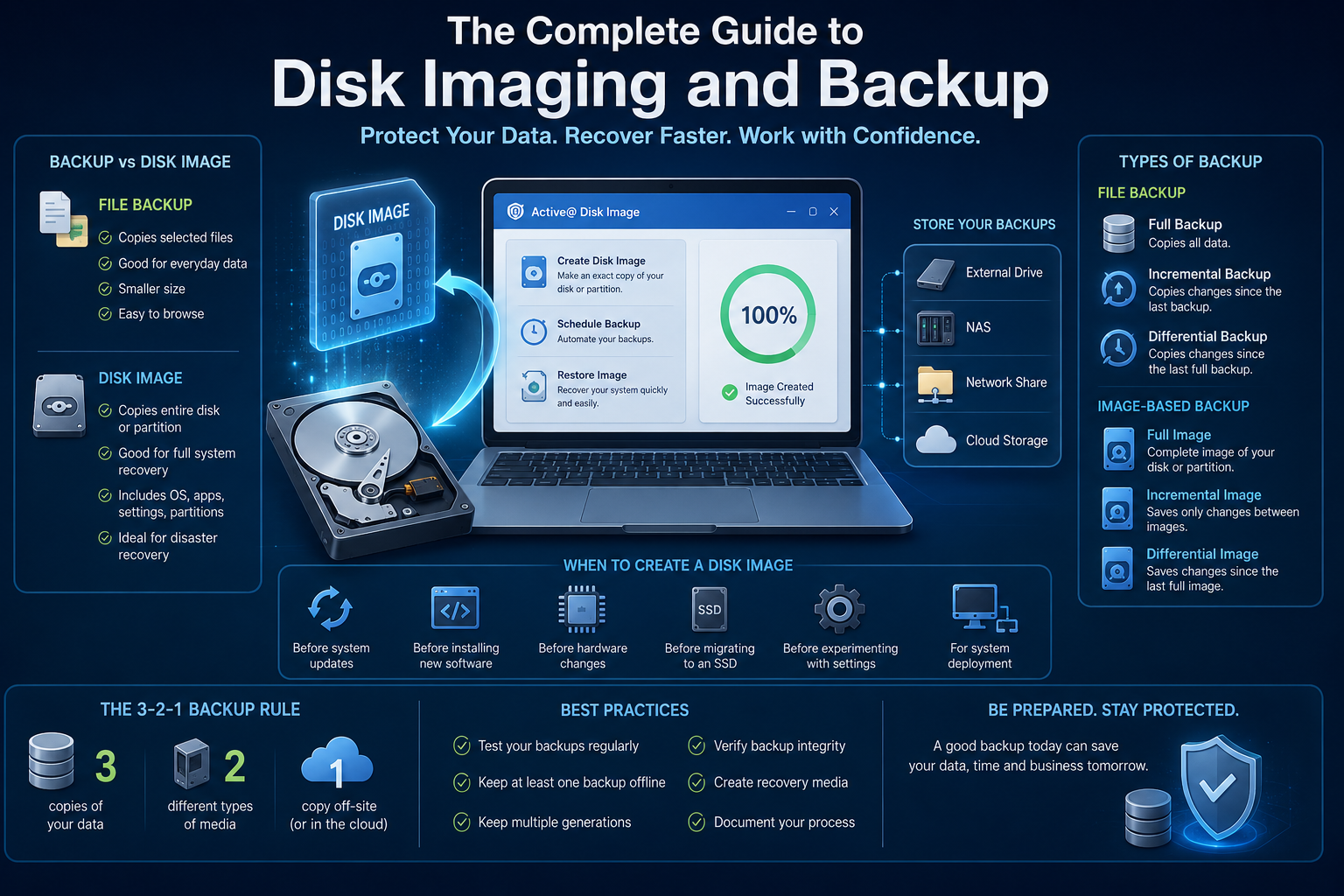
Data loss rarely happens at a convenient time.
Hard drive failures, ransomware attacks, accidental deletion, failed Windows updates, and hardware upgrades can all leave users scrambling to recover critical files—or entire operating systems.
The good news is that most of these disasters are preventable.
A well-designed backup strategy, combined with regular disk images, allows you to restore everything from a single document to an entire computer.
This guide explains how modern backup technologies work, when to use disk imaging, and how to build a reliable protection strategy.
What Is a Backup?
A backup is an additional copy of your data stored separately from the original.
Its purpose is straightforward:
If your original files become unavailable, damaged, or deleted, they can be restored from the backup.
Typical backup data includes:
- Documents
- Photos
- Videos
- Email archives
- Databases
- Source code
- Virtual machines
- Business records
Backups may be stored on:
- External drives
- NAS devices
- Network shares
- Cloud storage
- Tape libraries
- Secondary internal drives
The key principle is simple:
A file that exists in only one location is always at risk.
What Is Disk Imaging?
A disk image is different from a traditional file backup.
Rather than copying selected files, disk imaging creates a complete snapshot of an entire disk or partition.
A system image typically includes:
- Windows or Linux operating system
- Installed applications
- Drivers
- Boot records
- Partition layout
- Hidden recovery partitions
- User settings
- File system metadata
- Permissions
Restoring the image returns the computer to the exact state it was in when the image was created.
Backup vs Disk Image
Although people often use the terms interchangeably, they solve different problems.
| File Backup | Disk Image |
|---|---|
| Copies selected files | Copies an entire partition or disk |
| Best for everyday documents | Best for complete system recovery |
| Easy to browse | Designed for disaster recovery |
| Smaller storage requirements | Larger but more comprehensive |
| Restore individual files | Restore the entire operating system |
Most IT professionals use both.
File backups protect changing documents.
Disk images protect entire systems.
When Should You Create a Disk Image?
Disk imaging is especially valuable before major changes.
Recommended situations include:
- Before Windows feature updates
- Before replacing a hard drive
- Before migrating to an SSD
- Before installing new software
- Before hardware upgrades
- Before modifying partitions
- Before deploying multiple computers
Creating an image beforehand provides a fast rollback option if something goes wrong.
Types of Backup
Modern backup software usually supports several approaches.
Full Backup
A complete copy of all selected data.
Advantages:
- Simplest restoration
- Independent backup set
Disadvantages:
- Longest backup time
- Largest storage requirements
Incremental Backup
Only saves data changed since the previous backup.
Advantages:
- Very fast
- Small storage footprint
Disadvantages:
- Restoration depends on every backup in the chain.
Differential Backup
Copies everything changed since the last full backup.
Advantages:
- Faster recovery than incremental
- Simpler backup chains
Disadvantages:
- Larger than incremental backups
Image-Based Backups
Disk imaging software often supports:
- Full images
- Incremental images
- Differential images
This allows organizations to balance storage usage with recovery speed.
What Is Bare-Metal Recovery?
Bare-metal recovery restores an operating system onto completely empty hardware.
Instead of reinstalling Windows, applications, drivers, and settings individually, a system image rebuilds the entire environment automatically.
This significantly reduces downtime after hardware failures.
Common Causes of Data Loss
Many users assume backups are only necessary after a drive fails.
In reality, data loss happens for many reasons.
The most common include:
- Hardware failure
- SSD controller failure
- Accidental deletion
- Ransomware
- Malware
- File corruption
- Failed operating system updates
- Power outages
- User error
Regular imaging dramatically reduces recovery time in each of these scenarios.
The 3-2-1 Backup Rule
One of the most widely recommended backup strategies is the 3-2-1 rule.
Maintain:
- 3 copies of your data
- On 2 different types of storage
- With 1 copy stored off-site
This approach helps protect against hardware failures, theft, fire, ransomware, and natural disasters.
Local Backup vs Cloud Backup
Cloud storage has become increasingly popular, but it should not replace traditional backups.
| Local Backup | Cloud Backup |
|---|---|
| Fast recovery | Accessible anywhere |
| No Internet required | Off-site protection |
| Supports complete system images | Excellent for file synchronization |
| No subscription required | Protects against local disasters |
Many organizations combine both methods for maximum resilience.
Choosing Disk Imaging Software
When evaluating disk imaging software, consider features such as:
- Full system imaging
- Incremental and differential images
- Compression
- Encryption
- Scheduled backups
- Image verification
- UEFI and GPT support
- NVMe compatibility
- Bootable recovery media
- Rapid restore performance
Solutions such as Active@ Disk Image provide these capabilities, allowing users to create complete system images, automate backup schedules, verify image integrity, and restore systems using bootable recovery media.
Organizations requiring additional recovery and disk management capabilities may also benefit from the broader toolkit available in Active@ Data Studio.
Best Practices
A successful backup strategy depends on more than simply creating copies.
Follow these recommendations:
✔ Test backups regularly.
✔ Verify image integrity.
✔ Keep multiple backup generations.
✔ Store at least one backup offline.
✔ Create recovery media before you need it.
✔ Document your recovery procedures.
✔ Encrypt backups containing sensitive information.
Frequently Asked Questions
Can I restore individual files from a disk image?
Yes.
Most modern imaging software allows users to mount an image and recover individual files without restoring the entire operating system.
Are disk images compressed?
Typically yes.
Compression reduces storage requirements while preserving the complete contents of the original system.
Do disk images work with SSDs?
Absolutely.
Modern imaging software fully supports SSDs, NVMe drives, GPT partitions, and UEFI systems.
How often should I create a system image?
For most users:
- Monthly full system image
- Daily file backup
Businesses often create:
- Weekly full images
- Daily incremental backups
depending on recovery requirements.
Final Thoughts
No single backup method protects against every type of failure.
File backups safeguard your everyday work.
Disk images protect your operating system, installed software, configuration, and entire computing environment.
Using both together provides the most complete protection against hardware failures, ransomware, accidental deletion, and unexpected system problems.
The most effective backup strategy is not the one with the most features—it is the one that is tested regularly and available when disaster strikes.
Recommended Solution
Active@ Disk Image helps individuals and businesses create complete system images, schedule automatic backups, verify image integrity, and restore systems quickly after hardware failures or operating system issues.
Key features:
- Full, incremental, and differential imaging
- Bootable recovery media
- GPT/UEFI support
- Image verification
- Compression and encryption
- Fast bare-metal recovery