
Selling a Mac? Here's How to Protect Your Data
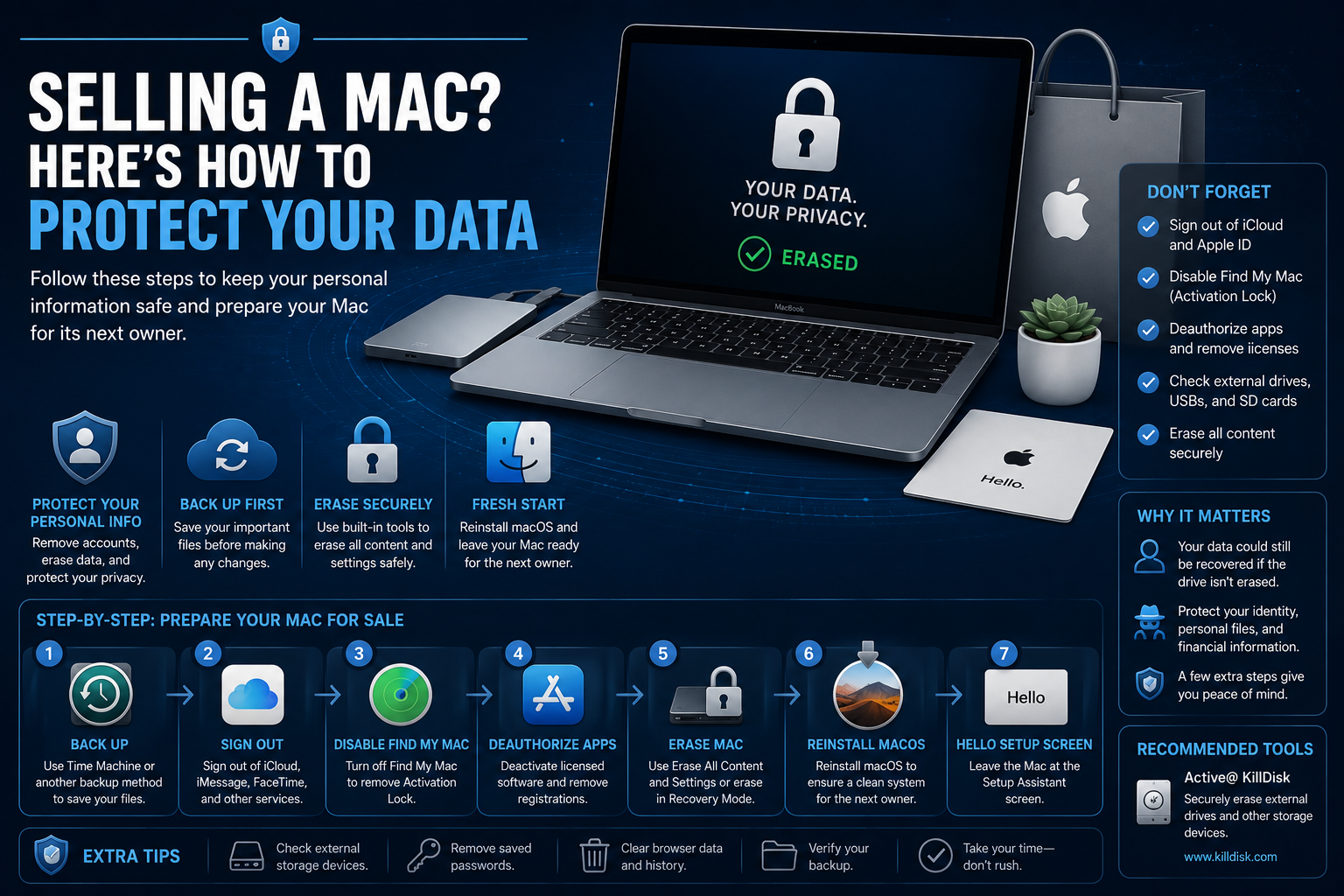
Whether you're upgrading to a new MacBook, trading in an iMac, or passing an older Mac to a family member, preparing it for its next owner involves much more than deleting a few files.
Your Mac contains years of personal information:
- Photos
- Emails
- Passwords
- Browser history
- Documents
- Financial records
- Apple account credentials
- iCloud data
If these aren't removed properly, they may remain accessible to the next owner—or even recoverable using specialized tools.
Fortunately, Apple provides excellent built-in security features, and with a few additional precautions, you can ensure your personal data stays private.
This guide walks through the safest way to prepare a Mac for resale or donation.
Step 1 – Back Up Your Mac
Before making any changes, create a complete backup.
Once the erase process begins, recovering forgotten files can be difficult—or impossible.
You can back up your Mac using:
- Time Machine
- An external drive
- Cloud storage
- A full disk image
Be sure to verify that your backup is complete before proceeding.
Step 2 – Sign Out of Apple Services
Your Apple ID connects many services to your Mac.
Before selling the computer, sign out of:
- iCloud
- iMessage
- FaceTime
- Apple Music
- Apple TV
- Apple Books
- Find My Mac
Signing out removes personal information and disconnects the device from your Apple account.
Step 3 – Disable Activation Lock
If Find My Mac is enabled, your Mac may be protected by Activation Lock.
Activation Lock prevents anyone else from activating the computer without your Apple ID credentials.
While this is an excellent anti-theft feature, forgetting to remove it before selling your Mac can prevent the buyer from using the device.
Signing out of iCloud or disabling Find My automatically removes Activation Lock.
Step 4 – Deauthorize Third-Party Applications
Many professional applications use activation limits.
Before selling your Mac, deactivate software such as:
- Adobe Creative Cloud
- Microsoft Office
- Logic Pro (if applicable)
- Final Cut Pro licenses
- VPN software
- Professional development tools
This ensures you can activate the software on your next computer.
Step 5 – Understand FileVault
Many Macs use FileVault, Apple's built-in full-disk encryption.
FileVault encrypts the entire drive, helping protect data if the computer is lost or stolen.
If FileVault is enabled, securely erasing the encrypted storage and removing the encryption keys provides an additional layer of protection before resale.
Step 6 – Erase the Internal Drive
The correct procedure depends on your Mac's hardware.
Apple Silicon Macs
Apple Silicon systems (M1, M2, M3 and newer) include Erase All Content and Settings, similar to the feature available on iPhone and iPad.
This option:
- Removes personal data
- Deletes Apple account information
- Clears settings
- Prepares the Mac for a new owner
For most users, this is the recommended approach.
Intel-Based Macs
Older Intel Macs typically require:
- Booting into macOS Recovery.
- Opening Disk Utility.
- Erasing the startup volume.
- Reinstalling macOS.
If the drive is encrypted with FileVault, the process also removes the encryption keys protecting your data.
Is Secure Erase Still Necessary?
Older mechanical hard drives (HDDs) sometimes supported multiple overwrite methods.
Modern Macs, however, almost exclusively use SSDs.
Unlike traditional hard drives, SSDs use wear leveling and controller-managed storage.
Because of this, repeated overwriting is generally not the preferred sanitization method.
Instead, modern Macs rely on:
- Full-disk encryption
- Secure key destruction
- Apple's erase process
- Firmware-managed storage protection
For organizations disposing of external storage devices or mixed Windows and macOS environments, dedicated data sanitization software such as Active@ KillDisk can securely erase supported external HDDs, SSDs, USB drives, and other storage media according to recognized industry standards.
Step 7 – Reinstall macOS
Once the drive has been erased, reinstall a clean copy of macOS.
The Mac should restart to the initial setup screen.
Do not complete the setup process yourself.
Instead, leave the Setup Assistant for the new owner.
Don't Forget External Storage
Many people focus only on the internal SSD.
Also check for:
- External hard drives
- USB flash drives
- SD cards
- Thunderbolt SSDs
- Backup drives
These often contain even more personal information than the Mac itself.
What About Browser Data?
Modern browsers store significant personal information.
Before erasing the Mac, verify that synchronization is disabled and data has been backed up if needed.
Remember to sign out of:
- Safari
- Google Chrome
- Microsoft Edge
- Firefox
Also remove:
- Saved passwords
- Cookies
- Autofill information
- Payment methods
Common Mistakes to Avoid
Avoid these common errors:
❌ Forgetting to sign out of iCloud.
❌ Leaving Activation Lock enabled.
❌ Forgetting external drives.
❌ Selling the Mac before verifying your backup.
❌ Forgetting software license deactivation.
❌ Assuming deleting files is sufficient.
Final Checklist
Before handing over your Mac, confirm that you have:
✔ Backed up important files.
✔ Signed out of your Apple ID.
✔ Disabled Find My and Activation Lock.
✔ Deauthorized licensed software.
✔ Removed browser data.
✔ Erased the internal drive.
✔ Reinstalled macOS.
✔ Left the Setup Assistant for the new owner.
✔ Checked all external storage devices.
Frequently Asked Questions
Is factory reset enough on modern Macs?
For most Apple Silicon Macs, Erase All Content and Settings is the recommended method because it removes personal information while securely preparing the device for resale.
Should I overwrite an SSD multiple times?
Generally, no.
Modern SSDs use different storage technologies than traditional hard drives, making repeated overwriting less effective and unnecessary.
What if my Mac uses FileVault?
FileVault encrypts your data.
Removing the encrypted volume and its encryption keys provides an additional level of protection during the erase process.
Should I physically destroy my Mac's SSD?
In most situations, no.
Modern erase procedures and encryption technologies are sufficient for personal devices being sold or donated.
Physical destruction is typically reserved for damaged storage devices or environments with specialized security requirements.
Final Thoughts
Preparing a Mac for sale is about much more than restoring factory settings.
Backing up your files, removing Apple accounts, disabling Activation Lock, securely erasing the storage, and reinstalling macOS help ensure that your personal information remains private while giving the new owner a clean start.
Taking a few extra minutes before selling your Mac protects not only your data, but also your digital identity—and provides peace of mind long after the computer has changed hands.