
The Complete Guide to Windows Recovery
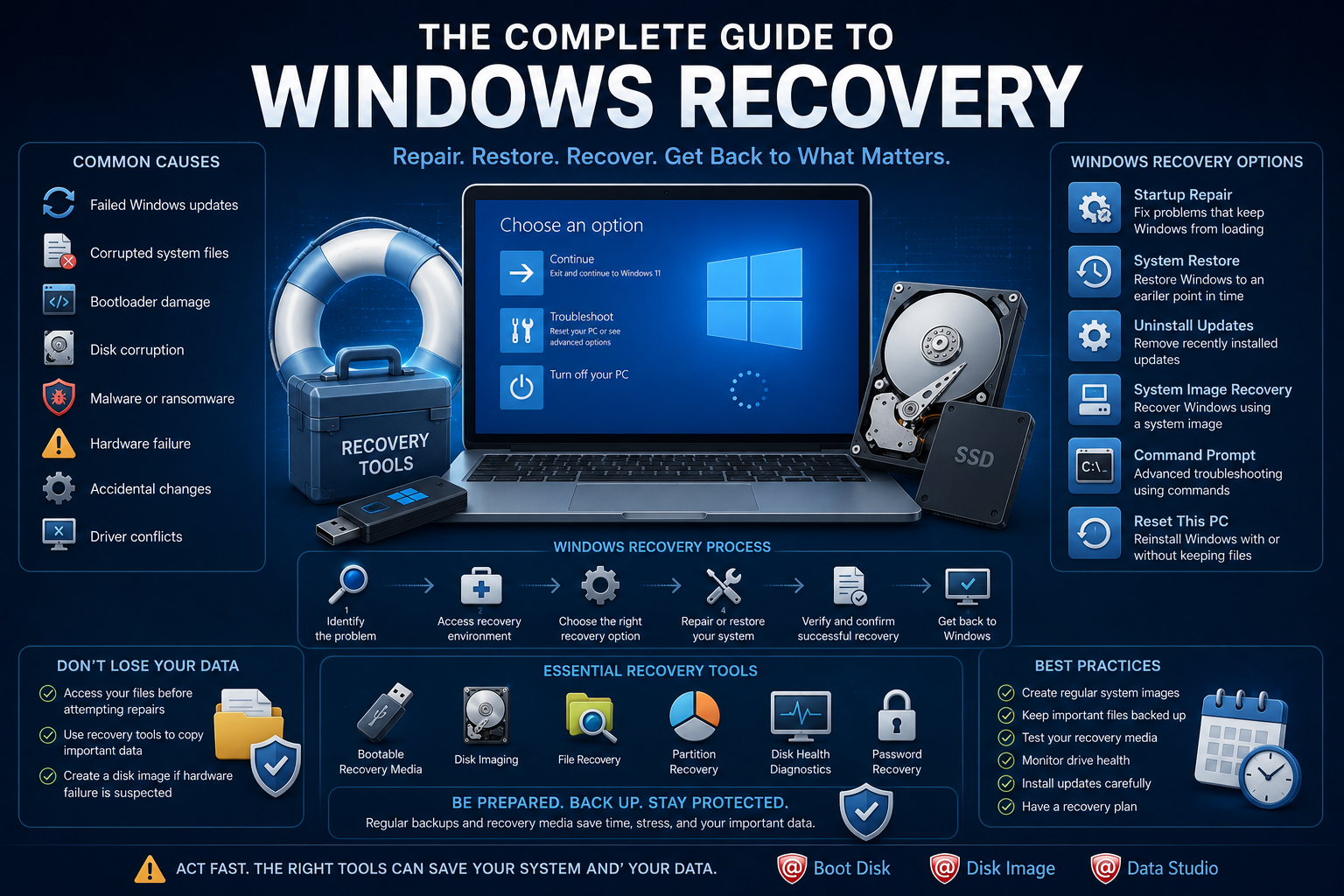
No matter how reliable modern computers have become, Windows failures still happen.
A failed update, corrupted system files, malware, hardware failure, or an accidental configuration change can suddenly leave your computer unable to start.
For many users, the first reaction is panic.
Important documents, family photos, business projects, and years of work may seem lost.
Fortunately, most Windows failures are recoverable—provided you understand the available recovery options and have the right tools prepared in advance.
This guide explains how Windows recovery works, the most common causes of boot failures, and the best ways to restore both your operating system and your data.
What Is Windows Recovery?
Windows recovery refers to the collection of tools and techniques used to restore a computer after system problems prevent normal operation.
Recovery may involve:
- Repairing Windows startup
- Restoring damaged system files
- Recovering deleted files
- Restoring a system image
- Repairing boot records
- Recovering lost partitions
- Accessing files from an unbootable computer
The appropriate method depends on the nature of the problem.
Common Reasons Windows Won't Boot
Boot failures can occur for many reasons.
The most common include:
- Failed Windows updates
- Corrupted system files
- Bootloader damage
- Disk corruption
- SSD or HDD failure
- Malware or ransomware
- Power interruptions
- Accidental partition changes
- Driver conflicts
- Hardware replacement
Understanding the underlying cause helps determine the safest recovery approach.
Before You Try to Repair Anything
Many users immediately begin reinstalling Windows.
This is often the wrong first step.
Before making changes:
✔ Determine whether your files are still accessible.
✔ Check if the drive is physically healthy.
✔ Avoid repeatedly restarting a failing drive.
✔ Create a disk image if hardware failure is suspected.
Protecting your data should always come before repairing the operating system.
Windows Recovery Environment (WinRE)
Modern Windows installations include the Windows Recovery Environment (WinRE).
WinRE provides several recovery tools, including:
- Startup Repair
- System Restore
- Command Prompt
- Uninstall Updates
- System Image Recovery
- Reset This PC
These built-in tools solve many common problems without reinstalling Windows.
Startup Repair
Startup Repair automatically checks for problems that prevent Windows from booting.
It can repair issues involving:
- Boot configuration
- Missing startup files
- Damaged boot records
- Certain registry problems
Although effective for many software-related issues, Startup Repair cannot fix hardware failures.
System Restore
System Restore rolls Windows back to an earlier restore point.
It may reverse:
- Faulty driver installations
- Software conflicts
- Registry corruption
- Problematic updates
Personal files remain untouched.
However, applications installed after the restore point may need to be reinstalled.
Reset This PC
Windows also offers a "Reset this PC" option.
Depending on the selected mode, it can:
- Keep personal files
- Remove applications
- Completely reinstall Windows
While useful, Reset is not a replacement for a proper backup strategy.
Recovering Files from an Unbootable Computer
One of the biggest misconceptions is that an unbootable Windows installation automatically means lost files.
In many cases, the storage device remains perfectly readable.
Bootable recovery environments allow users to:
- Access documents
- Copy important files
- Recover photos
- Export email archives
- Back up the entire drive
before attempting repairs.
Solutions such as Active@ Boot Disk provide a portable recovery environment that allows access to storage devices even when Windows itself cannot start.
Repairing Boot Records
Windows startup depends on several critical components.
These include:
- MBR (Master Boot Record)
- GPT (GUID Partition Table)
- EFI System Partition
- Boot Configuration Data (BCD)
Corruption in these areas can prevent startup even when the operating system itself remains intact.
Recovery tools may rebuild these structures without affecting personal files.
Recovering Lost Partitions
Incorrect partition operations sometimes make entire drives appear empty.
Fortunately, deleted or damaged partitions can often be reconstructed if the underlying data remains untouched.
Recovery software can analyze disk structures and restore lost partition information.
System Image Recovery
If you've previously created a complete system image, recovery becomes dramatically simpler.
Rather than reinstalling Windows manually, a system image restores:
- Operating system
- Applications
- Drivers
- Settings
- User profiles
- Installed software
- Partition layout
Everything returns to the exact state it was in when the image was created.
Software such as Active@ Disk Image allows users to create full system images in advance, significantly reducing recovery time after major failures.
What If the Drive Is Failing?
Sometimes Windows isn't the real problem.
The storage device itself may be failing.
Warning signs include:
- Clicking sounds (HDD)
- SMART warnings
- Frequent read errors
- Extremely slow performance
- Random freezes
If hardware failure is suspected:
- Stop using the drive.
- Create a sector-by-sector image if possible.
- Recover important files before attempting repairs.
Continuing to use a failing drive may reduce recovery chances.
Building a Bootable Recovery USB
Every computer owner should have bootable recovery media available before disaster strikes.
A bootable recovery USB allows you to:
- Start a non-booting computer
- Access files
- Repair Windows
- Restore system images
- Recover partitions
- Diagnose storage devices
Preparing recovery media in advance saves valuable time during emergencies.
Essential Recovery Tools
A complete recovery toolkit often includes:
- Bootable recovery environment
- Disk imaging software
- File recovery tools
- Partition recovery utilities
- Disk health diagnostics
- Password recovery tools
Integrated environments such as Active@ Data Studio combine many of these capabilities into a single recovery platform for technicians and IT professionals.
Best Practices
Reduce future recovery problems by following these recommendations:
✔ Create regular system images.
✔ Maintain frequent file backups.
✔ Test recovery media.
✔ Monitor drive health.
✔ Install Windows updates carefully.
✔ Keep recovery USB media available.
✔ Verify backups regularly.
Frequently Asked Questions
Can Windows always be repaired?
Not always.
If system corruption is severe or hardware has failed, restoring from a backup or system image may be the fastest solution.
Will reinstalling Windows delete my files?
It depends.
Some installation methods preserve personal files, while others erase the storage device completely.
Always recover important data first whenever possible.
What is the difference between Startup Repair and System Restore?
Startup Repair fixes boot problems.
System Restore rolls Windows back to an earlier configuration.
They solve different types of issues.
Should I create recovery media before I need it?
Absolutely.
Recovery media is most valuable when Windows cannot start at all.
Preparing it in advance ensures recovery tools remain available during emergencies.
Final Thoughts
Windows recovery is no longer limited to reinstalling the operating system from scratch.
Modern recovery tools make it possible to repair startup problems, recover important files, restore complete system images, and even rebuild damaged boot structures with minimal downtime.
The most successful recovery strategy begins long before disaster occurs.
Regular backups, periodic disk images, and bootable recovery media provide the foundation for fast, reliable recovery when unexpected problems arise.
Whether you're protecting a personal computer or managing hundreds of business workstations, preparation remains the most effective recovery tool of all.