Compare the approaches
Software for computers and attached disks
Active@ KillDisk is the starting point for erasing disks on equipment you already have. Compare its editions for the boot environment, reports and automation your work requires. This can suit retiring computers, preparing disks for reuse or erasing attached storage.
For a single-pass overwrite for personal use, start with Freeware. For customized reports, additional erasure methods and batch scripting, compare Pro. Pro Suite adds the paid Console boot environment to Pro; Ultimate also provides a Linux application and Linux LiveCD.
For a legacy 32-bit PC, distinguish running the Windows application from booting the computer. All four editions provide a 32/64-bit Windows application. Console Boot Disk supports compatible 32/64-bit PCs and is included with Freeware, Pro Suite and Ultimate. Windows Boot Disk and Linux LiveCD require a 64-bit PC.
If you boot computers from USB without removing their disks, choose the appropriate boot environment. For PXE network boot, review the KillDisk network boot instructions and licensing for the computers being erased. For a mix of laptops, servers and loose disks, check boot and controller support for each type; repeated batches of loose drives may suit Industrial Software better.
Software for a dedicated processing station
KillDisk Industrial Software is intended for repeated disk-processing workflows on your own compatible hardware. Review its automation, certificates, labels and disk-tracking features together with controller and operating-system requirements.
A complete erasure station
KillDisk Industrial hardware combines dedicated hardware with erasure software. Compare Desktop and rack-mountable System configurations. Specify disk interfaces and physical sizes, how disks are loaded, required throughput and reporting needs when requesting a quote.
The 45Drives Destroyinator is another appliance range powered by KillDisk Industrial, with configurations up to 60 drives. Its hardware, availability and delivery are arranged with 45Drives.
Check these details before choosing
- Erasure method: confirm what your policy requires and what the disk and controller support. An HDD and an SSD may need different approaches.
- Workflow: distinguish erasing computers in place from repeatedly loading loose drives into a station.
- Capacity: simultaneous connections, total disks processed and licensed computers are different quantities.
- Evidence: check the reports, certificates and labels required by your organization.
Erasure destroys data. Save needed files and confirm the selected target disks before running it. For missing files you want to keep, use the data recovery guide.
See the selected product's current edition comparison and licensing guidance before purchase.
Start with KillDisk
You want erasure software for computers or attached disks on your own equipment.
Sanitize all data on HDD, SSD & USB drives. No cost-per-erase!
Choose a KillDisk edition
All four editions erase disks and wipe unused space. Choose the boot environments, erasure methods and automation you need; then select the appropriate license.
Ultimate
For a mix of computers and a choice of Windows, Linux and Console boot environments.
- Windows application (32/64-bit) and Linux application (64-bit).
- Windows Boot Disk and Linux LiveCD (64-bit), plus Console Boot Disk (32/64-bit).
- Includes the Pro features, scripting and customized erasure certificates.
- ATA Secure Erase through the Linux application or Console on supported hardware.
Explore Ultimate →
Pro Suite
For Windows erasure plus a compact Console boot environment.
- Windows application (32/64-bit) and Windows Boot Disk (64-bit).
- Console Boot Disk (32/64-bit) also boots compatible legacy PCs.
- Includes the Pro reporting, erasure methods and batch scripting features.
- Console supports ATA Secure Erase on compatible disks and controllers.
Explore Pro Suite →
Pro
For Windows users who need additional erasure methods, customized certificates and scripted operations.
- Windows application (32/64-bit); Windows Boot Disk for erasing a system disk requires a 64-bit PC.
- 20+ erasure methods, custom patterns, disk inspection and PDF/XML reporting.
- Command-line batch processing and certificates with your company logo.
Explore Pro →
Freeware
For personal use when a single-pass zero overwrite is sufficient.
- Erase disks or partitions and wipe unused space with One Pass Zeros.
- Windows (32/64-bit), Linux (64-bit) and macOS downloads.
- Windows and Linux packages include Console Boot Disk (32/64-bit).
- Up to two disks in parallel, disk inspection and basic PDF/XML results.
Get Freeware →
Boot media must support the target computer and controller. Available erasure methods depend on the edition and environment; ATA Secure Erase is not available in Windows or Windows Boot Disk and requires a supported drive and connection. Paid editions have no per-erasure charge; check license scope and parallel-disk limits separately.
Next: choose the license for your use. Current prices and available licenses are listed on the product pages.
- Compare editions for the required boot environment, reports and automation.
- Check that the chosen erase method and your disk/controller combination meet your requirements.
Another option: KillDisk Industrial Software
Consider this if your workflow becomes a dedicated station processing batches of removable disks.
Compare all products and editions
Use your hardware as an erasure station
Your priority is repeatable batch processing with automation and disk tracking on equipment you already have.
Automated disk erasure on your own hardware.
Compare editions and options
KillDisk Industrial Software turns compatible equipment into an automated disk-processing station. It combines erasure, examination, disk tracking, certificates and labels, and can clone a disk or image after erasure.
Industrial Software for Windows
Run a dedicated erasure workflow on your own compatible Windows workstation or server.
- Automate examination, erasure and certificate printing when disks are connected.
- Process batches and track disks with barcode or QR-code labels.
- License simultaneous disk connections by slot; there is no additional fee per erasure.
Check Windows requirements and slot licensing →
Industrial Software for Linux
Use the industrial workflow on compatible Linux equipment, with an optional bootable LiveUSB.
- Configure disk layouts, hot-swap processing and reporting for the station.
- Inspect disk health with S.M.A.R.T., surface examination and verification tools.
- Optional LiveUSB starts supported computers without removing their disks; a valid license security key is still required.
Check Linux and LiveUSB options →
The current configurator offers 8–100 slot licenses. Confirm the controller, operating system, disk interfaces and sector sizes before choosing the number of slots.
Next: choose the license for your use. Current prices and available licenses are listed on the product pages.
- Review the Windows or Linux requirements and controller compatibility before purchase.
- Confirm the required simultaneous connections, certificates, labels and licensing with the product configuration.
Compare all products and editions
Compare Industrial Desktop configurations
You want a dedicated erasure station for a desk or workbench, including hardware and software.
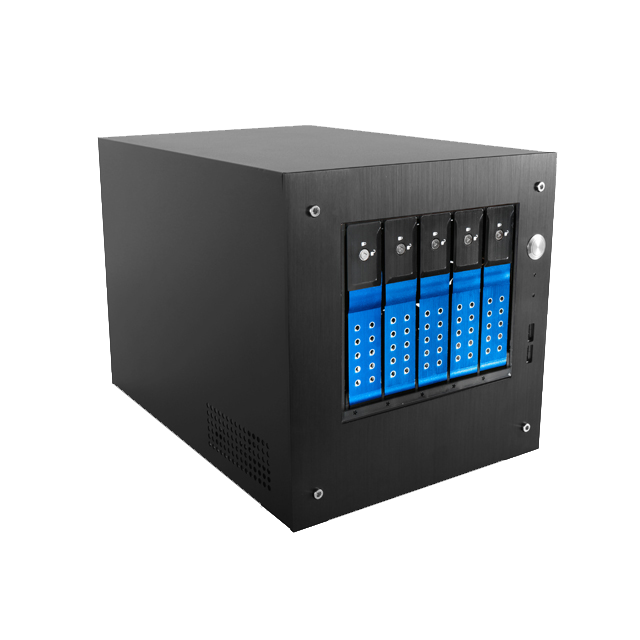
A complete desktop station for erasing and cloning loose drives, supplied with KillDisk Industrial Software.
Compare editions and options
KillDisk Industrial Desktop includes dedicated hardware and Industrial Software in a compact mini-tower. It provides automatic erasure, certificates, labels, disk examination and cloning from a master disk or image.
Desktop for HDDs and SSDs
A compact station for loading and processing removable drives at a desk or workbench.
- Choose hot-swappable bays for 3.5-inch HDDs and 2.5-inch HDDs or SSDs.
- Configure automatic processing and certificate printing when a disk is inserted.
- Optional adapters, touch-screen control and label or certificate printers.
Configure Industrial Desktop →
Desktop Premium Line for NVMe
A Desktop configuration with native NVMe connections for a workflow that includes NVMe drives.
- High-performance controllers support native NVMe I/O.
- U.2 bays can accommodate M.2 NVMe drives through the specified adapters.
- Compare drive sizes, interfaces and available bay combinations before ordering.
Compare Desktop NVMe configurations →
The advertised Desktop range is 7–15 disk slots. Capacity, supported interfaces and availability depend on the configuration; check the current configurator for the drives you intend to process.
Next: choose the license for your use. Current prices and available licenses are listed on the product pages.
- Open the Industrial website and compare Desktop models.
- Include the disk interfaces, sizes and expected workload in your quote request.
Compare all products and editions
Compare Industrial System configurations
You want a dedicated station suited to a rack or disk-processing facility.
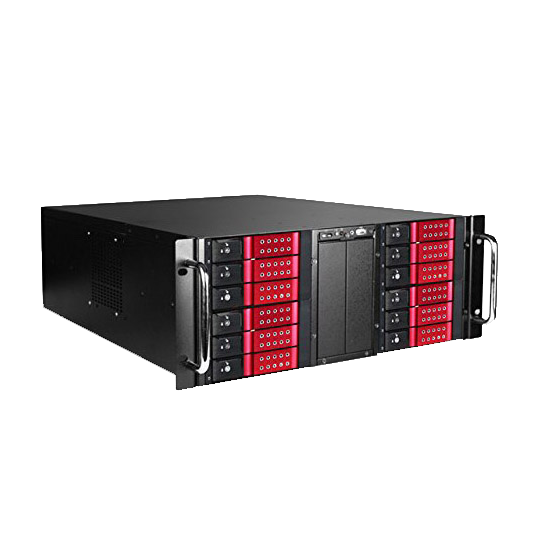
A complete rack-mountable station with KillDisk Industrial Software for disk erasure and cloning.
Compare editions and options
KillDisk Industrial System combines rack-mountable hardware with Industrial Software. Current models offer 10–26 disk slots, with automatic erasure, disk examination, certificates, labels and cloning.
Industrial System for HDDs and SSDs
A complete station for a rack or a disk-processing facility.
- 3U or 4U rack-mountable enclosure with configurable hot-swappable bays.
- Batch processing, erasure verification and disk-health monitoring.
- Clone a master disk or image to sanitized drives and print certificates or labels.
Configure Industrial System →
Industrial System Premium Line for NVMe
A rack-mountable configuration for native NVMe processing alongside your other disk requirements.
- Controllers and bay options for high-speed native NVMe I/O.
- U.2 connections and specified M.2 NVMe-to-U.2 adapters.
- Select the bay combination and control or printer options for your workflow.
Compare System NVMe configurations →
The slot count is the number of simultaneous disk connections, not a limit on lifetime erasures. Confirm the selected model's interfaces, controller compatibility and availability before ordering.
Next: choose the license for your use. Current prices and available licenses are listed on the product pages.
- Open the Industrial website and compare System models.
- Confirm controller support, disk connections, reporting and installation requirements when requesting a quote.
Compare all products and editions
Specify a complete erasure station
You want hardware and erasure software supplied together, with the configuration matched to your disks.
A complete desktop station for erasing and cloning loose drives, supplied with KillDisk Industrial Software.
Compare editions and options
KillDisk Industrial Desktop includes dedicated hardware and Industrial Software in a compact mini-tower. It provides automatic erasure, certificates, labels, disk examination and cloning from a master disk or image.
Desktop for HDDs and SSDs
A compact station for loading and processing removable drives at a desk or workbench.
- Choose hot-swappable bays for 3.5-inch HDDs and 2.5-inch HDDs or SSDs.
- Configure automatic processing and certificate printing when a disk is inserted.
- Optional adapters, touch-screen control and label or certificate printers.
Configure Industrial Desktop →
Desktop Premium Line for NVMe
A Desktop configuration with native NVMe connections for a workflow that includes NVMe drives.
- High-performance controllers support native NVMe I/O.
- U.2 bays can accommodate M.2 NVMe drives through the specified adapters.
- Compare drive sizes, interfaces and available bay combinations before ordering.
Compare Desktop NVMe configurations →
The advertised Desktop range is 7–15 disk slots. Capacity, supported interfaces and availability depend on the configuration; check the current configurator for the drives you intend to process.
Next: choose the license for your use. Current prices and available licenses are listed on the product pages.
- Provide the disk interfaces and sizes, expected throughput and reporting needs for a suitable quote.
Compare all products and editions
Compare 45Drives Destroyinator appliances
You want a high-density erasure appliance powered by KillDisk Industrial.

The Destroyinator is the drive wiping solution powered by KillDisk Industrial, with high-density disk configurations.
Compare editions and options
45Drives Destroyinator is a separate hardware range supplied by 45Drives with KillDisk Industrial preinstalled. It supports hot-swappable SATA/SAS HDDs and SSDs, automated certificates and disk cloning.
Destroyinator D15
A 45Drives appliance for processing up to 15 drives at once.
- 15 drive bays.
- KillDisk Industrial preinstalled.
Configure D15 at 45Drives →
Destroyinator D30
A larger appliance for processing up to 30 drives at once.
- 30 drive bays.
- KillDisk Industrial preinstalled.
Configure D30 at 45Drives →
Destroyinator D45
A high-capacity appliance for processing up to 45 drives at once.
- 45 drive bays.
- KillDisk Industrial preinstalled.
Configure D45 at 45Drives →
Destroyinator D60
The current largest listed Destroyinator model, processing up to 60 drives at once.
- 60 drive bays.
- KillDisk Industrial preinstalled.
Configure D60 at 45Drives →
Confirm the model, disk compatibility, software terms, warranty and delivery directly with 45Drives.
Next: choose the license for your use. Current prices and available licenses are listed on the product pages.
- Review the available D-series configurations and supported disk connections with 45Drives.
Compare all products and editions
Check the erasure requirements first
The equipment and workflow need clarification before a specific configuration can be recommended.
Get help matching the product to your computer, disks and workflow.
- Tell us which disks and controllers you use, how disks arrive, and which reports you need.
- Include whether you need software for existing equipment or a complete station.
Compare all products and editions
